5 Essential DaVinci Resolve Features for Efficient Wedding Video Editing: Color Management, Multicam, AI Transcription, Clip Colors, and Match Frame
This video details 5 key DaVinci Resolve features that significantly streamline wedding video editing workflows:
- 1. Color Management [00:22]: Automates the application of correct color and contrast to log footage (e.g., Sony S-Log3) by setting up a custom color processing workflow, saving substantial grading time.
- 2. Multicam Clip [02:20]: Simplifies editing multiple camera angles by consolidating synced clips into a single multicam clip, allowing for quick toggling between views during the edit.
- 3. Transcribing Audio [03:38]: Converts speeches, vows, and other dialogue into text, enabling editors to rapidly search for specific phrases and pull exact audio segments for narrative building.
- 4. AI Transcribing Audio + ChatGPT [05:44]: Extends the transcription utility by exporting text to AI tools like ChatGPT to identify the best quotes or narrative highlights from lengthy dialogues without manual listening.
- 5. Clip Colors & Match Frame [08:08]: Clip Colors aid in organizing footage by event type (e.g., groom, bride), while Match Frame quickly retrieves the original source audio from a timeline clip, saving time when re-editing audio.
Introduction [00:00]
Brian Rosson, a wedding filmmaker for over 15 years, shares five DaVinci Resolve features he uses regularly for wedding edits, highlighting how they save time and improve workflow.
1. Color Management for Wedding Footage [00:22]
This feature helps instantly apply the correct color, contrast, and saturation to log video clips, which is crucial for a streamlined editing process.
- Camera Setup: The presenter shoots with Sony A7S3 and FX30 cameras using the Sony S-Log3 picture profile.
- Configuration Steps in DaVinci Resolve Project Settings:
- Navigate to
File > Project Settings. - Go to
Color Management. - Uncheck "Automatic Color Management".
- Set "Color processing mode" to
Custom. - For "Input color space," select
S-Gamut3.Cine/S-Log3(or the equivalent for your camera, e.g., Nikon, Red, Canon).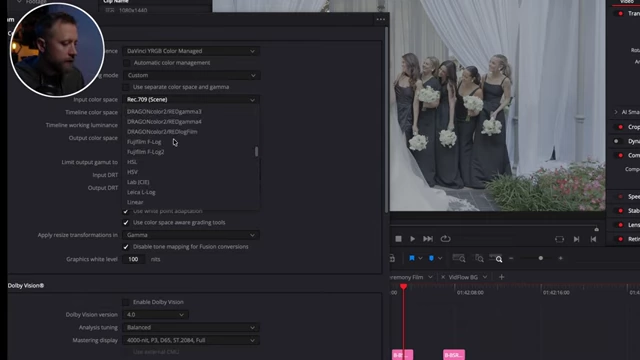
DaVinci Resolve Project Settings showing the selection of Input color space (S-Gamut3.Cine/S-Log3) in the Color Management section [ 00:01:35 ] - Set "Timeline working luminance" to
HDR 1000. - Leave "Output color space" at
Rec. 709 Scene. - Save these settings, which will instantly apply the color transformation to all log footage.
- These settings can be saved as a preset for future projects.
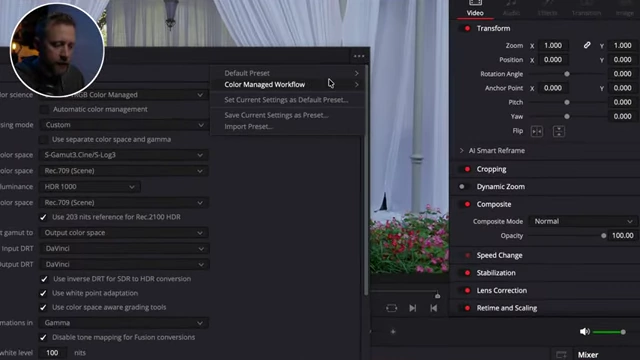
DaVinci Resolve Project Settings showing how to save the current color management settings as a preset [ 00:02:15 ]
- Navigate to
2. Multicam Clip [02:20]
The multicam clip feature allows editors to consolidate multiple synchronized camera angles into a single clip on the timeline, making it easy to switch between views.
- Creating a Multicam Clip:
- Sync up multiple clips in your timeline.
- Select all the synced clips, right-click, and choose "Create New Compound Clip." Name it appropriately (e.g., "Welcome").
- In the Media Pool, right-click on the newly created compound clip and select "Convert Compound Clip to Multicam Clip."
- Toggling Angles: Once converted, you can easily toggle between the different camera angles in the viewer during editing.
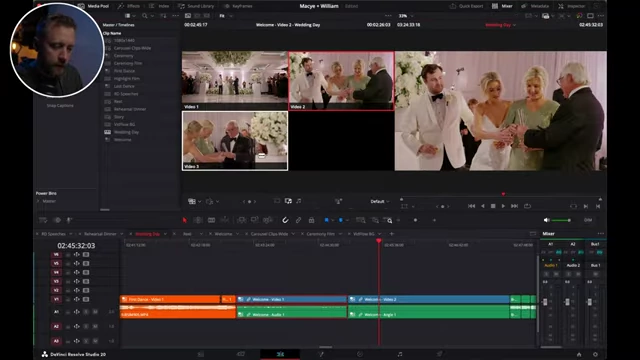
The multicam viewer in DaVinci Resolve displaying multiple synchronized camera angles for easy switching during editing [ 00:03:30 ]
3. Transcribing Audio for Wedding Storytelling [03:38]
DaVinci Resolve's transcribe feature converts audio dialogue into text, saving hours of scrubbing through footage to find specific quotes for narrative storytelling.
- Transcription Process:
- Select your timeline in the media pool.
- Click the "Transcribe" button. DaVinci Resolve will generate a text transcription of all dialogue.
- Searching and Extracting Audio:
- Use the search feature within the transcription window to find specific words or phrases.
- Highlighting text in the transcription automatically sets in and out points on the corresponding audio in the timeline.
- The selected audio can then be copied (Command + C) and pasted (Command + V) into your main edit.
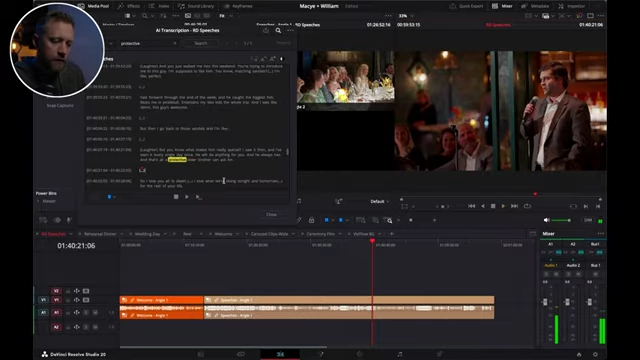
DaVinci Resolve showing the transcribed audio with a search term "protective" highlighted, automatically selecting the corresponding audio in the timeline [ 00:05:09 ]
4. AI Transcribing Audio + ChatGPT [05:44]
This advanced workflow leverages the transcription feature by exporting the text to an AI tool like ChatGPT to further analyze and identify the most impactful quotes or highlights from speeches.
- Exporting Transcription:
- After transcribing, click the "Export" button in the transcription window.
- Save the transcription as a
.txtfile.
- Using ChatGPT for Analysis:
- Upload the
.txtfile to ChatGPT (even the free version works). - Prompt ChatGPT to "analyze these speeches and find 10 of the best quotes to use in my wedding film."
- ChatGPT will provide a list of suggested quotes, including speaker names and approximate timestamps, serving as a starting point for selecting key dialogue.
- Editors can then use these suggestions to quickly locate the audio segments in DaVinci Resolve by searching for the quote text.
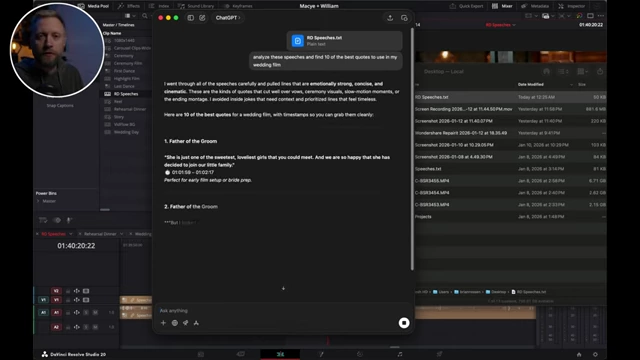
ChatGPT analyzing an exported speech transcript and providing a list of best quotes, including speaker and timestamp, for a wedding film [ 00:07:05 ]
- Upload the
5. Clip Colors [08:08]
Color-coding clips on the timeline is a simple yet effective way to organize footage, especially in long wedding edits.
- Workflow Organization:
- Assign different colors to specific parts of the day or subjects (e.g., blue for groom, pink for bride, yellow for bride and groom together).
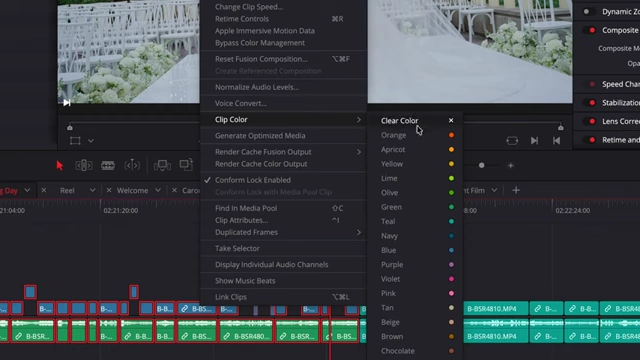
DaVinci Resolve's right-click menu showing various Clip Color options for organizing footage on the timeline [ 00:08:31 ] - This visual organization helps quickly identify and navigate different types of footage on the timeline.
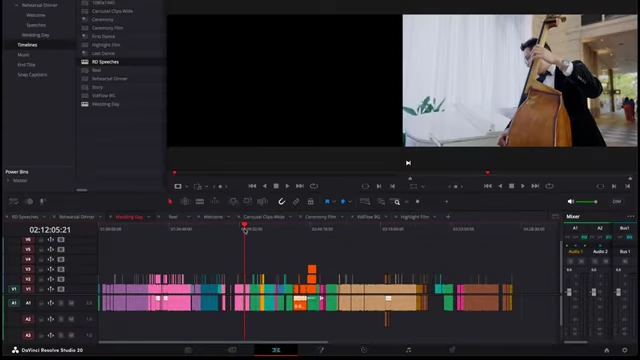
A DaVinci Resolve timeline showcasing various clips organized by different colors, indicating distinct segments of the wedding day [ 00:08:35 ]
- Assign different colors to specific parts of the day or subjects (e.g., blue for groom, pink for bride, yellow for bride and groom together).
6. Match Frame to Quickly Grab Audio [08:35]
Match Frame is a time-saving feature that helps retrieve the exact source audio for a video clip already on the timeline without losing your place.
- How it Works:
- If you've placed a video clip on the timeline without its audio, but later decide you need the audio, position the playhead over that clip.
- Use a custom shortcut (e.g., 'C' as set by the presenter) for "Match Frame."
- This loads the original source clip into the Source Viewer, precisely at the frame matching your timeline playhead.
- From the Source Viewer, you can then easily drag the audio waveform into your timeline.
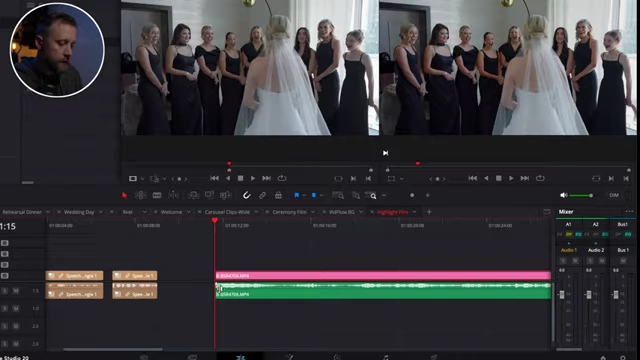
The DaVinci Resolve Source Viewer showing the audio waveform, ready to be pulled into the timeline after using the Match Frame function [ 00:09:25 ]