Resolving Gamma Shift Issues on Mac for Accurate DaVinci Resolve Renders
Experiencing gamma shift in DaVinci Resolve on Mac is common due to differing color spaces: Apple displays use P3 (gamma ~1.96-2) while Resolve defaults to Rec.709 Gamma 2.4. Incorrectly setting Resolve to Rec.709A only fixes the issue for Apple displays, causing problems elsewhere.
Two workflows offer solutions:
- Industry-Standard (for cinema/TV, 100% accuracy):
- Acquire a professional reference monitor (e.g., EIZO) calibrated to platform standards.
- Use an I/O device (e.g., Blackmagic UltraStudio) to bypass Mac's internal color management and transfer clean signals.

DaVinci Resolve Project Settings with 'Output Gamma' set to 2.2 under the Color Management tab. [ 00:08:35 ]
- Practical (for web streaming, without hardware upgrade):
- Enable "Use Mac display color profile for viewers" in Resolve preferences before grading.
- Set Resolve's output gamma to 2.2 instead of 2.4 in color management settings.
Always avoid QuickTime Player for viewing renders due to its inconsistent color management; instead, use non-color managed players like VLC.
Understanding Gamma Shift on Mac [00:00:00]
Gamma shift is a common problem for Mac users involved in color grading with DaVinci Resolve, where rendered videos and images appear different inside Resolve's viewer compared to the final output.
- The Problem [00:00:05]
- Colors in rendered videos appear different from what is seen in DaVinci Resolve's viewer.
- The Cause [00:00:14]
- Most Apple displays default to the P3 color space with a gamma of approximately 1.96-2.
- DaVinci Resolve's output color space often defaults to Rec.709 Gamma 2.4, leading to discrepancies due to different color spaces and gamma values.
- Ineffective Solution [00:01:01]
- Setting Resolve to Rec.709A to correct the issue is wrong. While it might look correct on Apple displays, the content will appear incorrect on non-Apple displays, creating more problems.
- Content should always be graded within Rec.709.
Industry-Standard Workflow for Professional Accuracy [00:01:28]
This workflow is designed for professionals working on cinema and TV content, where 100% accuracy is critical.
- 1. Invest in a Reference Monitor [00:02:00]
- Apple displays are not true reference monitors suitable for accurate color grading.
- Recommended EIZO Monitors: [00:02:17]
- For Rec.709 Gamma 2.4 (standard): EIZO CG2700X.
- For P3 color space (cinema): EIZO CG31X.
- For HDR content: EIZO CG1.
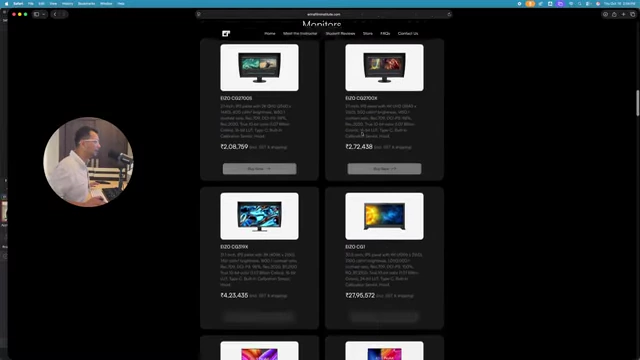
Overview of recommended EIZO reference monitors for different color spaces and grading needs. [ 00:02:28 ]
- 2. Utilize an I/O Device [00:03:10]
- Purpose: When a display is connected directly to a system, the GPU can alter true signals. An I/O device takes a clean signal from Resolve and passes it to the display without any alteration, bypassing the Mac's internal color management system.
- Recommended Blackmagic Design I/O Devices: [00:03:46]
- UltraStudio 4K Mini.
- UltraStudio 4K Extreme 3 (for more displays or SDI connections).

Blackmagic Design UltraStudio input/output devices for capture and playback. [ 00:03:55 ]
- 3. Calibrate Your Display [00:04:46]
- It is crucial to calibrate your reference monitor according to the specific standards of the platform you are working for (e.g., P3 for cinema, Rec.709 for web).
- Calibration Tools: [00:05:00]
- Dedicated calibration kits like Calman.
- The recommended EIZO monitors come with inbuilt calibration sensors.
- Summary of Professional Setup for 100% Accuracy [00:05:24]
- A reference monitor.
- A calibrated monitor (according to platform standards).
- An I/O device.
Practical Workflow for Apple Displays (Web Streaming) [00:05:46]
This workflow is for users who grade content for web streaming platforms using Apple displays and do not wish to upgrade hardware. This workflow is not suitable for cinema or TV work.
- 1. DaVinci Resolve Preferences Setting [00:06:45]
- Go to Preferences > General tab.
- Enable "Use Mac display color profile for viewers."
- This setting instructs Resolve to use the exact color profile your Mac is using.
- Important Note: These steps must be performed before starting the grading process to avoid color and gamma shifts.

DaVinci Resolve's Preferences window with the "Use Mac display color profile for viewers" option checked in the General tab. [ 00:06:55 ]
- 2. DaVinci Resolve Project Settings (Color Management) [00:07:30]
- Navigate to the Project Settings (gear icon) > Color Management.
- Change the Output Gamma to 2.2 instead of the default 2.4.
- Your display's gamma is approximately 1.96-2, and rendering with a gamma of 2.2 will result in a much smaller difference, making content appear correct on both Apple and non-Apple displays.
DaVinci Resolve's Project Settings with 'Output Gamma' set to 2.2 under the Color Management tab. [ 00:08:35 ]
Important Note on Playback Software [00:09:07]
- Avoid QuickTime Player [00:09:09]
- QuickTime Player has its own color management system and uses different NCLC tags, which can cause gamma shifts even with correctly graded and rendered content.
- Recommended Player: VLC [00:09:38]
- Use a player that follows a non-color management chain, such as VLC Player, for accurate review of content.
- Advise clients to use VLC for reviewing your work to ensure they see the colors as intended.