Enhance Your Productivity: Aesthetic To-Do Lists and Calendar Management with Apple Reminders and Calendar
Summary:
This video demonstrates how to organize your weekly tasks and calendar using Apple Reminders and Apple Calendar for an aesthetic and functional system. The creator previously used Apple Notes for quick dumps and ClickUp for detailed weekly tasks, but found it inconvenient to access ClickUp on mobile. She transitioned to Apple Reminders, which offers several advantages over Apple Notes:
- Aesthetic Customization: Create lists with emojis and assign colors to categorize tasks.
- Reminders and Notifications: Set specific dates and times for tasks, integrating them with the Apple Calendar.
- Hierarchical Organization: Utilize sub-tasks for detailed breakdown of larger projects.
- Cross-Device Syncing: Access reminders across all Apple devices.
The video also covers syncing Google Calendar with Apple Calendar by subscribing to Google Calendars within Apple Calendar to consolidate all events in one aesthetic interface. This allows users to color-code different calendars and view tasks and appointments clearly. The combined use of Apple Reminders and a customized Apple Calendar provides a mobile-friendly, visually appealing, and efficient organizational solution for daily and weekly planning.
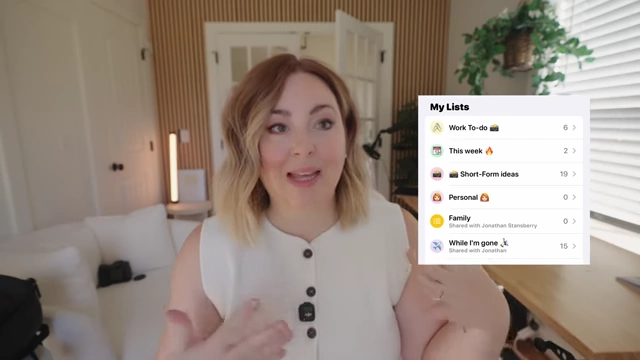
Apple Reminders lists with emojis and colors [ 00:02:09 ]
Introduction [00:00]
The video introduces a new system for organizing weekly tasks and to-do lists using Apple's native Reminders and Calendar apps. The goal is to create a more aesthetic and organized approach to daily planning.
Previous Organizational System [00:47]
- Before Apple Reminders and Calendar: The creator primarily used a combination of Apple Notes and ClickUp for managing her weekly to-do list.
- Apple Notes for Quick Dumping:
- Used as a swift place to jot down tasks and ideas.

Basic to-do list in Apple Notes [ 00:01:00 ]
- Used as a swift place to jot down tasks and ideas.
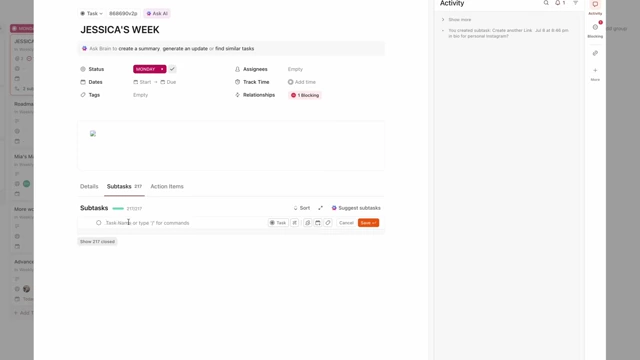
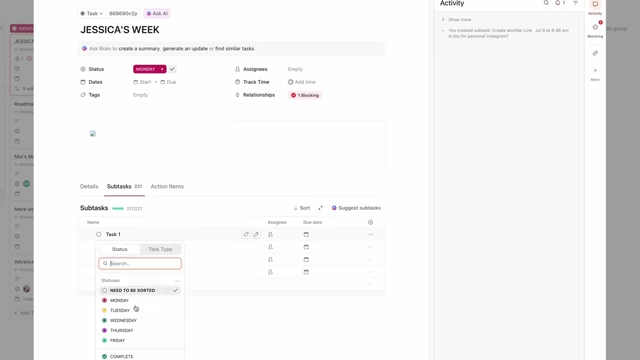
- ClickUp for Organized Task Management:
- Challenges with the Old System:
- Lack of mobile accessibility for ClickUp, leading to missed tasks or delayed entries.
- Reliance on a computer to view or add items to the to-do list.
- Apple Notes for Quick Dumping:
Why Apple Reminders is Superior to Apple Notes [02:37]
- Enhanced Aesthetics:
- Apple Reminders allows for a more visually appealing organization with customizable colors and emojis for lists.
Customizable Apple Reminders lists with emojis and colors [ 00:02:09 ]
- Apple Reminders allows for a more visually appealing organization with customizable colors and emojis for lists.
- Functionality and Reminders:
- Ability to set actual dates and times for tasks.
- Provides notifications for upcoming deadlines.
- Flexibility to create tasks without strict calendar integration or notifications.
Apple Reminders Tutorial [03:02]
- Home Screen Widget Integration:
- A Reminders widget can be placed on the home screen for quick access to "This Week's" checklist.
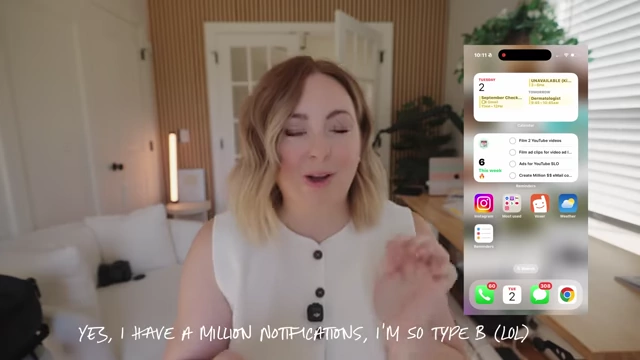
Reminders widget on iPhone home screen [ 00:03:04 ]
- A Reminders widget can be placed on the home screen for quick access to "This Week's" checklist.
- List Organization:
- Create various lists such as "Work To-Dos," "Short Form Ideas," "Personal," and "Family."
- Each list can be assigned a specific color and emoji for easy identification.
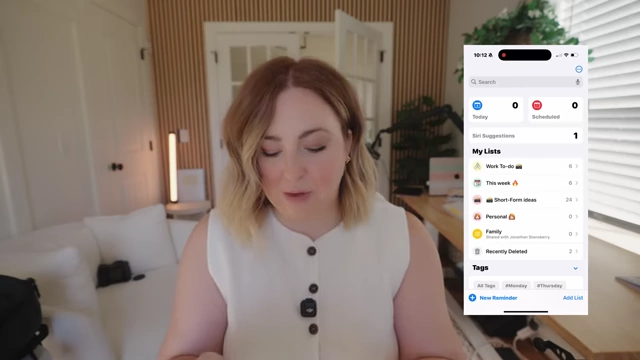
Organized Reminders lists with icons and colors [ 00:03:14 ]
- Adding and Structuring Tasks:
- Overarching Tasks: Create main tasks that represent larger projects.
- Weekly Tasks: Detail specific tasks for the current week within a dedicated list.
- Tagging Tasks: Use tags (e.g., #Tuesday, #Wednesday) to indicate the planned day for completion.
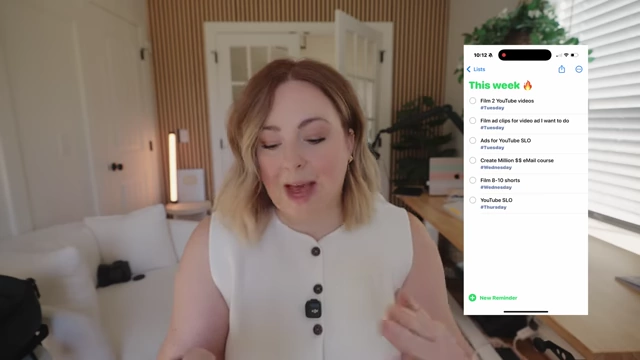
Weekly tasks with day tags in Apple Reminders [ 00:03:54 ]
- Creating Sub-tasks:
- Drag a task entry slightly to the right to indent it, making it a sub-task of the item above it.
- Sub-tasks help in breaking down larger ideas or projects into manageable steps.
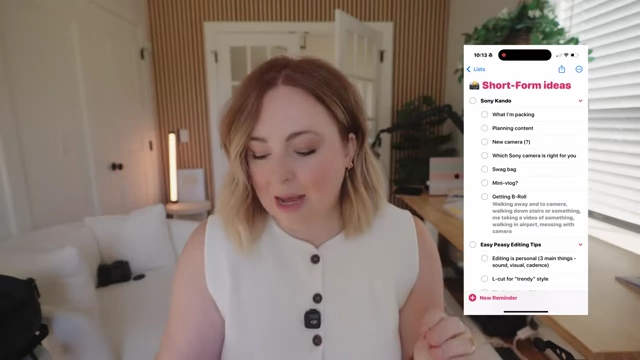
Apple Reminders list with indented sub-tasks [ 00:04:18 ]
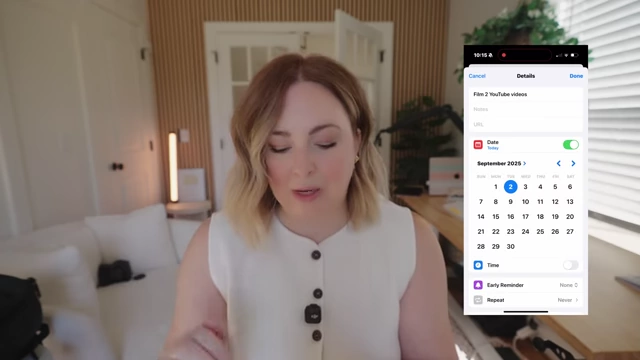
- Assigning Dates and Times to Tasks:
- Cross-Device Synchronization: Reminders sync across all Apple devices (iPhone, iPad, Mac), ensuring accessibility from anywhere.
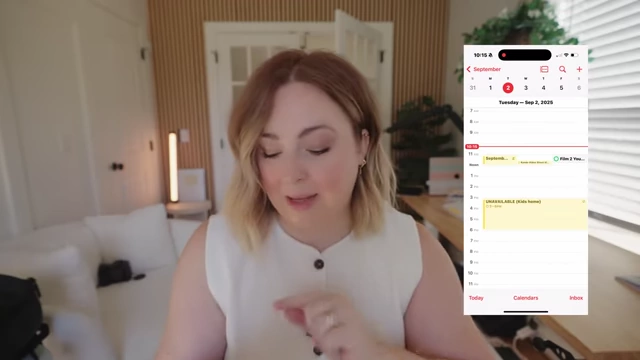
Syncing Google Calendar and Apple Calendar [06:19]
- Hybrid Calendar System: The creator uses both Google Calendar and Apple Calendar due to common external invites often being sent via Apple's system, and Google Calendar's accessibility from any device and team integration.
- Subscribing to Google Calendars:
- To integrate Google Calendars into Apple Calendar, users need to grab the share link (ICS link) from their Google Calendar settings.
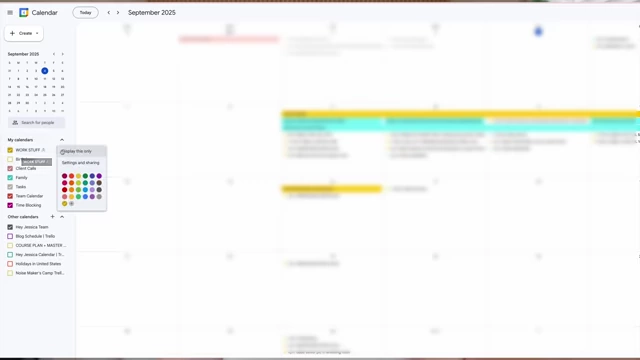
Google Calendar settings showing share options [ 00:07:12 ] - Within the Apple Calendar app, navigate to "Calendars" and select "Add Subscription Calendar."
- Paste the Google Calendar share link to import all events, which will then appear in the Apple Calendar.
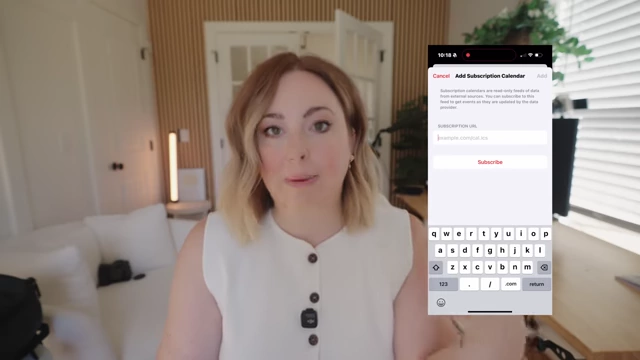
Adding a subscription calendar in Apple Calendar [ 00:07:32 ]
- To integrate Google Calendars into Apple Calendar, users need to grab the share link (ICS link) from their Google Calendar settings.
Making Apple Calendar Aesthetic [07:35]
- Color-Coding Calendars:
- Each calendar (e.g., Work, Time Blocking, Family, Personal, Subscribed) can be assigned a unique color.
- Colors can be customized to match a desired aesthetic, potentially using a color palette from resources like Pinterest.
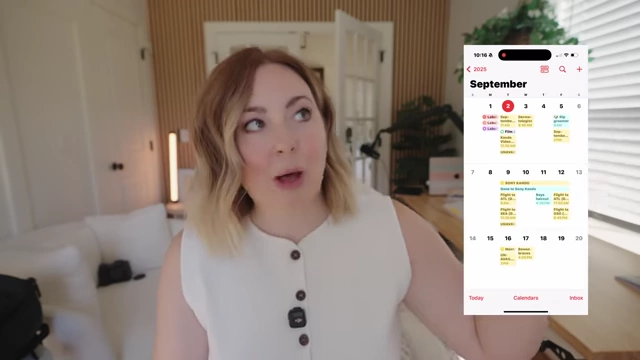
Apple Calendar monthly view with color-coded events [ 00:06:08 ] 
Apple Calendar showing various subscribed and iCloud calendars [ 00:07:37 ]
- Visualizing Schedule:
- The Apple Calendar allows for pinch-to-zoom functionality to adjust the view from dots representing events to actual task names for the entire month.
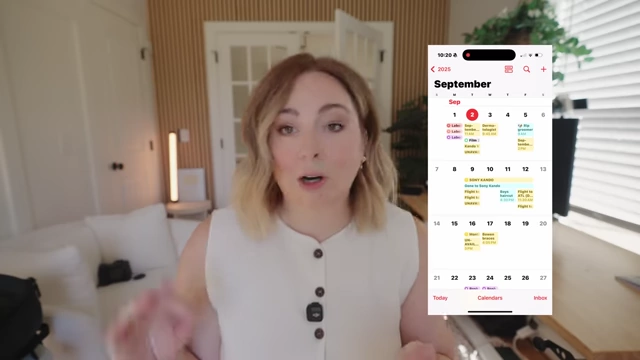
Apple Calendar monthly view showing full event names after pinch-to-zoom [ 00:09:02 ]
- The Apple Calendar allows for pinch-to-zoom functionality to adjust the view from dots representing events to actual task names for the entire month.
- Adding Emojis to Calendar Events:
- Placing emojis at the beginning of calendar event names enhances visual appeal and quick identification (e.g., a puppy dog face for dog grooming appointments).
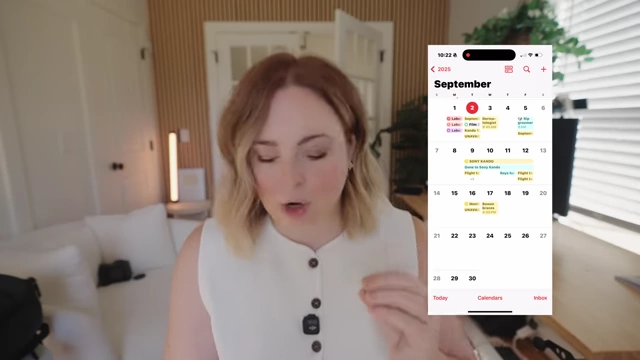
Apple Calendar displaying emojis with events [ 00:09:46 ]
- Placing emojis at the beginning of calendar event names enhances visual appeal and quick identification (e.g., a puppy dog face for dog grooming appointments).
- Continued Use of Other Tools: While Apple Reminders and Calendar are primary for daily tasks, ClickUp is still used for larger business tasks, client management, and course launches, and Apple Notes remains a dumping ground for information.