This video features Daria Fissoun, a colorist and compositor, sharing her expertise on optimizing workflows in DaVinci Resolve, particularly focusing on the Media Management tool to save time and prevent headaches.
An overview of the Media Management tool in DaVinci Resolve
[
00:12:10
]
Daria introduces herself as a colorist and compositor who specializes in DaVinci Resolve, developing training materials for Blackmagic Design and consulting on film projects for companies like Disney and DreamWorks. [00:00:54]
She highlights the Media Management tool in DaVinci Resolve as underutilized, explaining how it enables copying or transcoding media with greater control than standard export options. [00:10:45]
Daria demonstrates how to use Media Management to backup a project with only the used media, reducing file size significantly compared to a full project archive. [00:14:15]
A key tip shared is the ability to make trimmed copies of raw media while retaining its original format, which is not possible through the standard Deliver page. [00:20:30]
She explains how to consolidate multiple edit segments into one file and leverage the Media Management tool for generating specific file formats for VFX houses or other post-production needs. [00:26:16]
Finally, Daria reveals how Media Management accurately displays the exact size of the output file, a crucial feature for meeting specific deliverable requirements that the Deliver page lacks. [00:35:16]
Introduction to Daria Fissoun: Colorist and Workflow Specialist [00:00:22]
Daria Fissoun introduces herself as a colorist and compositor primarily working with DaVinci Resolve. [00:01:04]
She develops training materials for Blackmagic Design, including the colorist guide and exam curriculum. [00:01:19]
Her professional work includes film projects, documentaries, commercials, and music videos. [00:01:41]
Daria's passion lies in developing workflows and consulting for production companies. [00:01:51]
She helps companies optimize their setup and signal flow to maintain media integrity from start to finish. [00:02:01]
Her expertise covers technical details like codecs, file containers, and color management, which are often overlooked by directors and producers. [00:03:17]
Daria's consulting role emerged through Blackmagic Design, leading to opportunities with major companies like Disney and DreamWorks to address complex workflow challenges. [00:03:54]
She enjoys being a "background" expert, enabling others to create projects efficiently. [00:05:53]
Daria will be presenting at ResolveCon, discussing a documentary restoration project as a case study, highlighting new tools and processes she discovered. [00:06:35]
ResolveCon will be live-streamed on Casey Faris's channel, with in-person spots available in Portland, Oregon. [00:07:10]
Mastering Media Management in DaVinci Resolve [00:10:45]
Daria emphasizes the underutilized Media Management tool in DaVinci Resolve for efficient media handling. [00:10:45]
This tool allows for copying or transcoding media to varying degrees, offering more control than the Deliver page or Quick Export. [00:11:01]
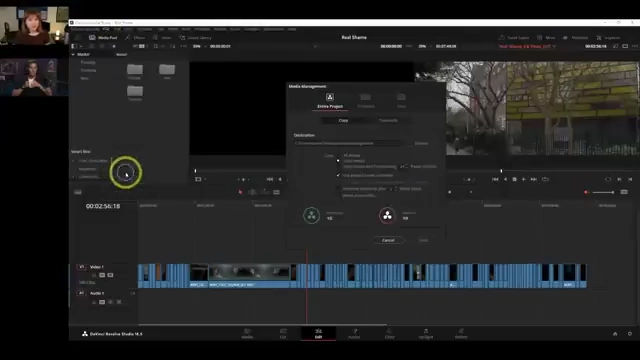
It is accessed via the "File" menu at the top, under "Media Management," opening as a floating window. [00:11:27]
Accessing the Media Management tool in DaVinci Resolve
[
00:12:10
]
1. Archiving Projects with Only Used Media [00:14:15]
Media Management allows backing up a project using only the media present in the final timeline, significantly reducing file size compared to a full project archive (DRA). [00:14:15]
A full project archive includes all media, including outtakes, pre-roll, post-roll, and deleted scenes, leading to bloated file sizes. [00:15:24]
By selecting "Used Media" in Media Management, only clips appearing in at least one timeline are included in the export. [00:16:10]
Trimming Media: Further reduce file size by trimming media with handles (e.g., 12 or 24 frames) to remove unused pre-roll and post-roll from clips. [00:18:02]
This process generates only the media, not a project file (DRA), so the project file itself must be exported separately (DRP or DRT). [00:18:55]
The Media Management tool can trim raw media (e.g., Red, Alexa) while preserving its original raw format, a capability not available in the Deliver page. [00:20:30]
This is useful for creating smaller raw files for training or sharing specific portions of high-quality footage. [00:21:26]
Trimmed raw clips retain their original start and end timecodes, ensuring correct relinking within timelines despite a different duration. [00:24:42]
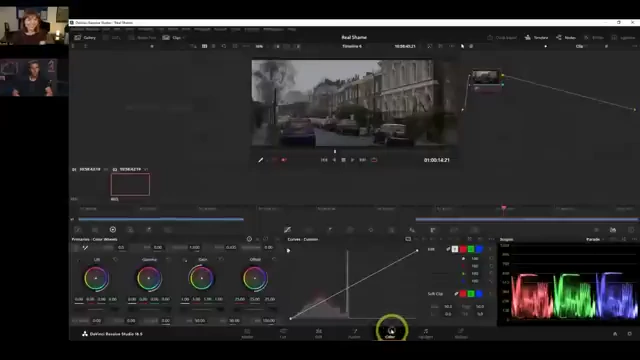
Working with a trimmed RAW clip in DaVinci Resolve, demonstrating retained RAW controls
[
00:24:06
]
Consolidate multiple edit segments into one file: This option combines multiple cuts from a single take into one longer file, avoiding redundant copies of overlapping frames and simplifying the output. [00:26:16]
3. Transcoding with Expanded Codec Options [00:27:41]
Media Management's transcode mode supports a wider range of codecs and containers than DaVinci Resolve's built-in proxy tools or standalone generator app. [00:27:41]
Examples include MXF for Avid editors or EXR for VFX turnovers. [00:27:53]
This allows for generating specific proxy formats or high-end deliverables tailored to different post-production needs. [00:31:09]
Creating a Master Timeline: To transcode specific portions or an entire project with custom settings, creating a master timeline by deselecting "empty timeline" when creating a new timeline ensures all captured clips are lined up in full duration, in their capture order. [00:28:14]
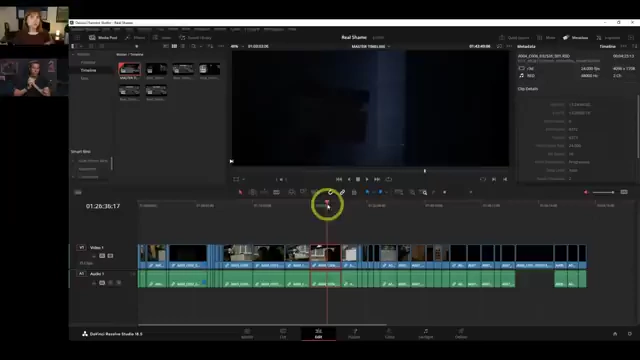
Creating a master timeline with all clips in sequential order
[
00:29:10
]
4. Accurate File Size Prediction for Deliverables [00:35:16]
Media Management provides an exact readout of the rendered file size in megabytes or gigabytes, a crucial feature for meeting strict file size requirements for festivals or online submissions. [00:35:16]
The Deliver page only shows the percentage of drive space remaining after a render, making it difficult to precisely control output file size. [00:35:50]
Users can adjust video settings like keyframes and data rate within Media Management to optimize quality while staying within file size limits. [00:38:22]
Adjusting video settings like keyframes and data rate within Media Management to control output file size
[
00:39:57
]
Higher keyframe frequency reduces motion artifacts. [00:38:25]
Manual control over data rate allows precise balancing of quality and file size. [00:39:58]
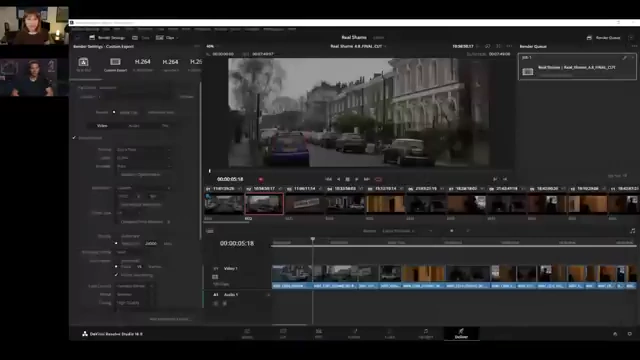
Although Media Management does not offer a render queue like the Deliver page (meaning it's not a background process), users can use it to determine optimal settings (data rate, quality) and then apply those settings in the Deliver page for queued rendering. [00:41:59]
The Deliver page's Render Queue, showing multiple jobs added for batch rendering
[
00:43:40
]