This video tutorial demonstrates how to build a macOS menu bar utility app using SwiftUI and system command-line tools.
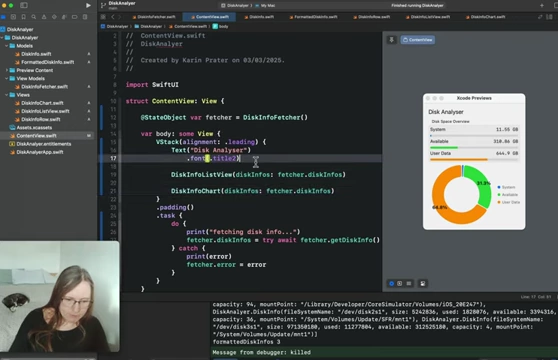
Disk Analyzer App in macOS menu bar showing disk space overview and donut chart.
[
00:00:25
]
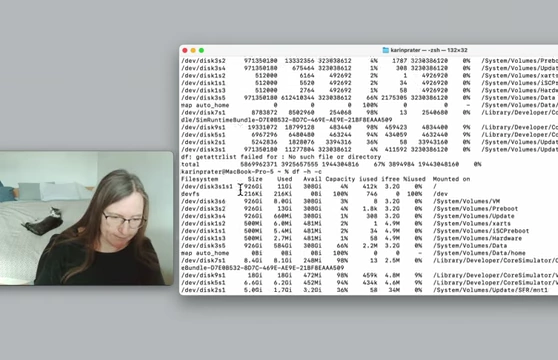
It begins by introducing command-line tools like df (disk free) and du (disk usage) to fetch disk space data, explaining their differences and flags (-H for human-readable, -k for kilobyte).
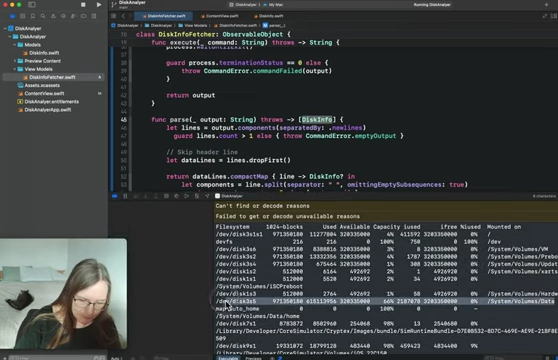
The core functionality involves fetching raw disk data using the df -k command and parsing it line by line into a Swift DiskInfo model.
The tutorial then focuses on transforming this raw data into a FormattedDiskInfo model suitable for UI display, including calculations for percentages and formatting for human readability using ByteCountFormatter.
The SwiftUI user interface is built, featuring a list of disk usage categories with custom progress bars and a pie chart to visually represent disk allocation.
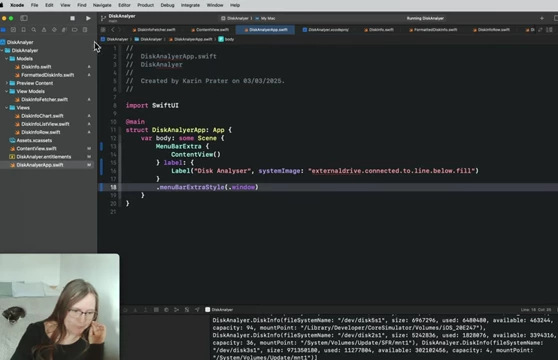
Finally, the application is integrated into the macOS menu bar using MenuBarExtra, showing how to set its style to appear as a window rather than a list of buttons.
The video introduces the concept of small utility applications that reside in the macOS menu bar, specifically a disk analyzer app.
The main challenges highlighted are properly extracting and formatting data from command-line output and then building a SwiftUI user interface with custom progress bars and charts.
Disk Analyzer App in macOS menu bar showing disk space overview and donut chart.
[
00:00:25
]
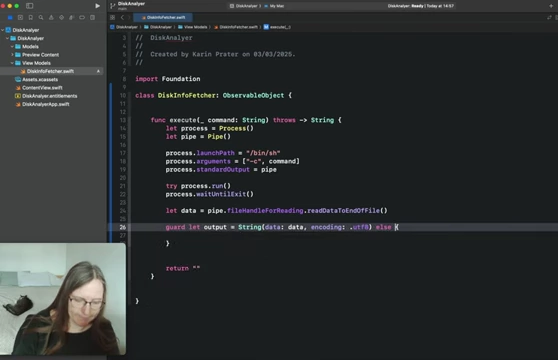
A DiskInfoFetcher class (conforming to ObservableObject) is created to handle data fetching.
Executing Terminal Commands in Swift:
A generic execute_command function is implemented using Process and Pipe to run shell commands.
process.launchPath is set to /bin/zsh (the shell).
process.arguments is set to ["-c", command_string] to execute the command string.
process.standardOutput is set to a Pipe to capture the command's output.
The function waits for the process to finish and extracts the output as a string.
Error handling includes InvalidData and CommandFailed cases.
Swift code for executing shell commands using `Process` and `Pipe`.
[
00:08:31
]
Data Model (DiskInfo Struct):
A DiskInfo struct is created to hold raw parsed data from the df command output.
Properties include fileSystem, size, used, available (all Int64 in kilobytes), capacity, and mountPoint.
Parsing Command Output (parse_output function):
The raw string output from df -k is split into lines, with the first line (header) being ignored.
Each data line is further split by spaces into components.
A DiskInfo object is created from these components, handling potential parsing errors.
Swift code parsing raw `df` command output into `DiskInfo` objects.
[
00:13:27
]
UI-Friendly Data Model (FormattedDiskInfo Struct):
A FormattedDiskInfo struct (conforming to Identifiable) is created for display purposes in SwiftUI.
It includes properties like title, size, and totalSize.
Helper properties (isSystemVolume, isDataVolume) are added to DiskInfo to easily filter data points (system, available, user data).
An extension to Array is created to quickly find system and data volumes.
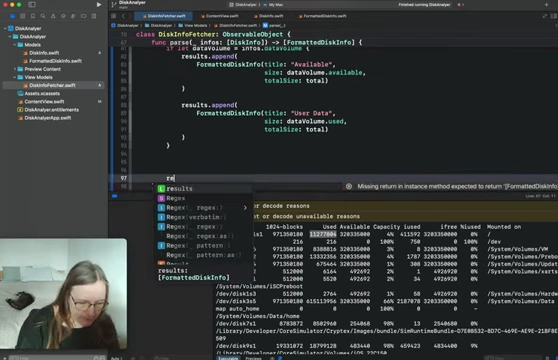
The parse_diskInfos function transforms DiskInfo array into FormattedDiskInfo array, combining relevant data points for "System," "Available," and "User Data."
Swift code converting raw `DiskInfo` into formatted `FormattedDiskInfo` for UI display.
[
00:17:41
]
Asynchronous Data Fetching:
A getDiskInfo function is created in DiskInfoFetcher to orchestrate the command execution and parsing.
It uses async/await and a Task to run the operations in the background, updating @Published properties (diskInfos, error, isLoading) for SwiftUI views to react to.
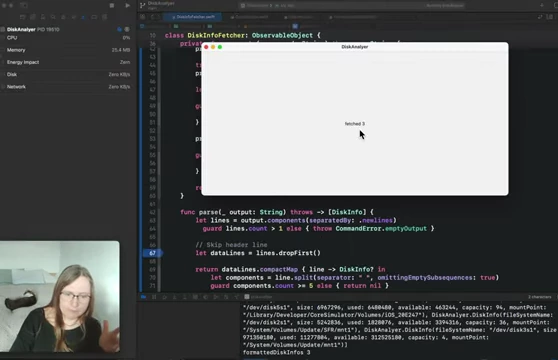
Debugging output confirming 3 formatted disk info entries fetched.
[
00:22:15
]
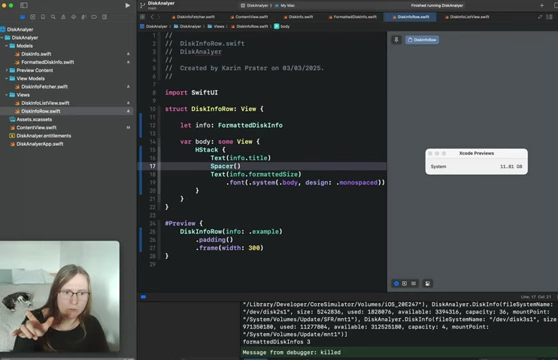
FormattedDiskInfo is extended with computed properties formattedSize and formattedTotalSize using ByteCountFormatter to convert kilobyte integers into human-readable strings (e.g., "11 GB"). A 1000 factor is added due to the df -k output in kilobytes.
DiskInfoRow View:
A SwiftUI DiskInfoRow view is created to display individual disk info entries.
It shows the title (e.g., "System"), formatted size, and a custom progress bar.
The progress bar is built using Rectangle inside a GeometryReader, clipped to a Capsule shape for rounded corners.
The width of the progress bar is calculated based on the percentage of size relative to totalSize.
A progressColor computed property assigns different colors (e.g., .blue, .green, .orange) based on the item's title.
SwiftUI `DiskInfoRow` displaying disk title, formatted size, and a custom progress bar.
[
00:26:00
]
DiskInfoListView View:
A DiskInfoListView is created to display a list of DiskInfoRow elements.
It uses a ForEach loop within a GroupBox to show the data, providing a structured layout with a "Disk Space Overview" label.
listRowSeparator(.hidden) is used to remove default list separators for a cleaner look.
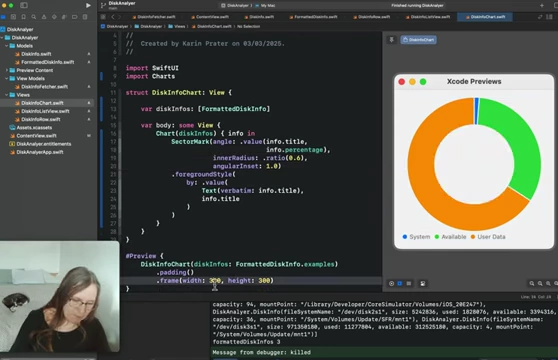
DiskInfoChart View:
A DiskInfoChart view is created to display a pie chart using the Charts framework (requires import Charts).
It takes the FormattedDiskInfo array as input.
SectorMark is used, with angle based on the percentage and angularInset for a donut effect.
foregroundStyle is set dynamically based on the item's title (using the same color logic as DiskInfoRow).
annotation is added to display the percentage value on each section of the donut chart.
The chart's legend is placed on the trailing edge.
The main application file (DiskAnalyzerApp.swift) is modified to use MenuBarExtra instead of WindowGroup.
MenuBarExtra takes content (the ContentView) and a label (an icon and title for the menu bar). An SF Symbol like "externaldrive" is used for the icon.
To resolve issues with scene restoration and display style, defaults delete command is used in Terminal to clear user defaults for the app's bundle identifier.
The menuBarExtraStyle(.window) modifier is applied to the MenuBarExtra to make the pop-up menu look like a standard window rather than a list of buttons, which is better suited for the complex UI.
A fixed frame (width: 300, height: 400) is added to the ContentView to control the size of the menu bar pop-up.
Swift code configuring `MenuBarExtra` with `.window` style for the macOS menu bar app.
[
00:35:42
]